Chatting
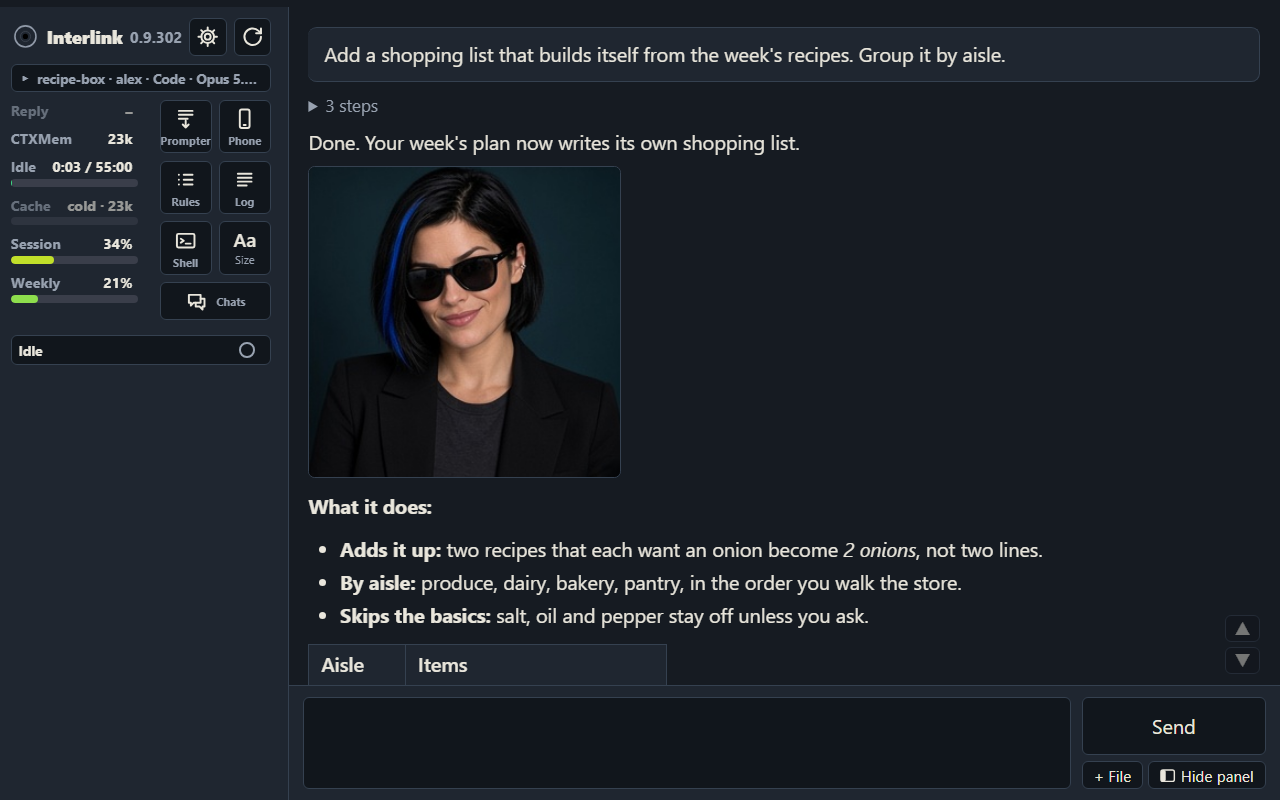
Pick a project in the side panel, type and press Enter (Shift+Enter for a new line). The assistant works in that project's folder and can edit and run things there without asking each time.
- Send while it works: your message goes in at once and it reads it at its next step.
- A message landing just as a reply ends waits as queued, with Send now, Edit and Cancel.
- Stop ends a reply early.
- Paste, drop or use + File to share a picture or file. Replies can show pictures and sound players too.
- Tool steps fold into one tidy line. Warnings (yellow triangle) and notes (ⓘ) show one line; click for the rest. Anything that asks you a question shows in full.
The screen
The side panel holds the essentials: the window's sign, Settings, restarts, a strip with project · account · model, live meters (Reply, chat size, Idle, Session, Weekly) and icon tiles for scrolling, mute, Rules, Log and Shell. Drag its edge to resize it; F9 hides it, F11 goes full screen.
There's no New button. A window is one never-ending chat that rolls on to a fresh one by itself when it gets long.
Earlier chats above
When a chat carries on from an earlier one, the earlier chat shows above it, read-only, under a line with its date and title. Scroll near the top and the next older one loads, without losing your place. The last says Start of this conversation. Same on the phone.
Click a path
A file or folder path in a reply gets a dotted underline. Click it and Explorer opens right there, with the file selected. A path that's gone opens the nearest folder that still exists. Phones keep paths as plain text, since Explorer would open on a PC nobody's looking at.
Seeing a picture bigger
Click any picture in the chat and it opens full screen. Pinch or wheel to zoom up to 8x, drag to move, double-tap for 2x. Buttons for −, + and Fit work without a mouse, and the keys − + 0 do the same. Close with ✕, Esc, Back on the phone, or a swipe down.
Drag to scroll
Drag the chat up or down with the mouse. On blank space a drag always scrolls; on words, your first move decides: straight up or down scrolls, sideways selects text. Hold half a second first and it always selects. Let go mid-drag and the chat glides on.
Autocorrect
The message box fixes your usual typos as you type: teh becomes the, dont becomes don't. Backspace or Ctrl+Z right after a fix puts back exactly what you typed. Paths, email addresses and anything in backticks are left alone. Repeat a typo often enough and the assistant adds it to the list for you.
Choice buttons
When the assistant asks you to pick between a few options, each one is a button. Tap one and it's sent as your answer, as if you'd typed it. Whatever you had half-typed stays put. Typing your own answer still works.
Several windows
One window per project, each with its own color on its taskbar button, its top edge and your messages. Left-click the tray icon to see your projects and bring one forward. Closing a window wraps up only its own chat; Reopen brings back the last closed window of each color, chat and all.
Living signs
Each window's taskbar ring shows what its chat is doing:
- Rings falling inward: working.
- Breathing dot: a plan or question is waiting for your go.
- Ripples: a reply finished while you looked away.
- Red ring with a shake: an error.
When a chat wraps up, a divider runs a quick Blade Runner baseline test and settles on Cells interlinked. That line means the chat is safe to leave.
Minimize
Click the Interlink sign or name at the top left to minimize the window; its taskbar button brings it back.
One chat per project
Only one chat works on a project at a time, so two chats never edit the same files under each other. A second chat on a busy project is refused, naming the window that has it. Different projects run side by side, and every chat is told which projects others have open, so it warns before touching files there.
Switching projects
Switch to another project and the new chat doesn't start blind. Your first message there brings a short piece of the chat you left: its last few exchanges, anything you said about the new project and the notes that fit. About 600 tokens, once per switch, nothing to press. The token badge shows exactly what came along.
Saved chats and search
Every chat is saved complete as it happens, word for word with the time of each message. The Chats tile opens a full-page search across all of them: best match first, words highlighted, "quotes" for a phrase, project:NAME or account:NAME to narrow it. Click a result to unfold the passage around it. Past chats are read-only.